
Initialize and understand your Ansible environment to configure the virtual machines and deploy docker containers.
Configuring Ansible#
We’re going to be running Ansible from the hypervisor box to configure and set up everything on our virtual machines. To do this we’ll have to configure a few things.
This is the output of tree -L 1 -a inside the directory where we hold all Ansible files:
$ tree -L 1 -a
.
├── ansible.cfg
├── files
├── hosts
├── playbook.yml
└── roles
These files/directories serve the following purposes:
ansible.cfgholds Ansible configurations for the current directory.filesThis directory holds somes files which we will copy into our virtual machines.hostsdefines the IP, login user, ssh key among other things for every box Ansible will make deployments to.playbook.ymlThis is the main file which defines every role that will be run.rolesThis directory holds the roles and their respective tasks.
This was an extremely simplified rundown of what some files do, if you’re not familiar with how Ansible works you should go to its documentation site and get yourself acquainted with its inner workings.
The ansible.cfg file just disables some deprecation warnings because of the syntax I like to use in YAML for the roles/tasks configuration files as well as settings the hosts file as the inventory; it should look like this:
[defaults]
deprecation_warnings = False
inventory = hosts
The self-explanatory named hosts file contains entries for the three virtual machines we have created and the groups they belong to (any host can belong to any number of groups). Here’s an example of the structure with placeholder groups:
[group1]
doris   ansible_host=192.168.122.2   ansible_ssh_user=root   ansible_ssh_private_key_file=[/path/to/ssh/key]

[group2]
doris   ansible_host=192.168.122.2   ansible_ssh_user=root   ansible_ssh_private_key_file=[/path/to/ssh/key]
cutxn   ansible_host=192.168.122.3   ansible_ssh_user=root   ansible_ssh_private_key_file=[/path/to/ssh/key]
cutxo   ansible_host=192.168.122.4   ansible_ssh_user=root   ansible_ssh_private_key_file=[/path/to/ssh/key]
The playbook.yml file is what we point to when running Ansible. Create the file like this for now, it will make sense further down this post.
---
- name: Preparation
  hosts: all
  roles:
    - global_preparation
Now the roles directory holds more directories inside of it, one for every service (mostly).
Here’s the output of tree -L 4 inside the Ansible directory. I have created two roles for now, global_preparation and global_finalizing, these two roles will run on every virtual machine we deploy. They contain general user-defined configurations as well as the installation of some packages. For the moment we’ll only be dealing with global_preparation.
I intentionally left out the files directory and its contents for now, we’ll look at that soon enough.
$ tree -L 4
.
├── ansible.cfg
├── hosts
├── playbook.yml
└── roles
    ├── global\_finalizing
    │   └── tasks
    │       └── main.yml
    └── global\_preparation
        └── tasks
            └── main.yml
Firstly, let’s modify main.yml for the global_preparation role to look like this:
(The global_finalizing role we’ll look at in the next chapter.)
$ cat roles/global_preparation/tasks/main.yml
---
- name: Set timezone to Europe/London
  timezone:
    name: "Europe/London"

- name: Update apt cache and install some packages
  apt:
    name: "{{ item }}"
    state: "latest"
    update_cache: yes
  with_items:
    - "containerd"
    - "docker-compose"
    - "docker.io"
    - "gpg"
    - "htop"
    - "neovim"
    - "postgresql-client"
    - "python3-docker"
    - "ssl-cert"

- name: Add .bashrc to /etc/skel
  copy:
    src: ".bashrc"
    dest: "/etc/skel/"
    owner: "root"
    group: "root"
    mode: "0644"

- name: Add .bashrc to /root/
  copy:
    src: ".bashrc"
    dest: "/root/"
    owner: "root"
    group: "root"
    mode: "0644"

- name: Add .hushlogin to /etc/skel/
  copy:
    src: ".hushlogin"
    dest: "/etc/skel/"
    owner: "root"
    group: "root"
    mode: "0644"

- name: Add .hushlogin /root/
  copy:
    src: ".hushlogin"
    dest: "/root/"
    owner: "root"
    group: "root"
    mode: "0644"

- name: Add sudo-wheel to /etc/sudoers.d/
  copy:
    src: "sudo-wheel"
    dest: "/etc/sudoers.d/"
    owner: "root"
    group: "root"
    mode: "0600"

- name: Set /srv permissions
  file:
    dest: "/srv"
    owner: "root"
    group: "root"
    mode: "0700"
    state: "directory"
I’ll very quickly dissect each task:
- The first task sets the box’s timezone to London. Feel free to modify this if it’s not representative for you.
- The second task installs some packages that I use constantly; neovim as a text editor, htop in case we need to monitor system resources, and Docker.
- Third and fourth tasks add a custom .bashrc I made for this specific project, I’ll show it below. The file gets added to
/etc/skeland/rooton the third and fourth tasks respectively. Read about skel here if you don’t know what it’s for. - The fifth and sixth tasks do the exact same as the previous two, but with the
.hushloginfile, this file is only there to prevent useless drivel displayed on the terminal when login into the box through ssh. - The seventh task adds the file
sudo-wheelinto/etc/sudoers.d, this file allows every member of the wheel group to perform sudo actions without having to provide a password. - Lastly, the eighth task sets 700 ugo permission to
/srv.
We need to put the files being copied in a location where Ansible can read them to transfer them to our boxes.
This is what the files directory we ommited earlier is for.
I’ll cat the files’ contents, create each of them inside this directory.
$ cat files/.bashrc
# inputrc
shopt -s autocd expand_aliases
set -o vi
bind -m vi-command 'Control-l: clear-screen'
bind -m vi-insert 'Control-l: clear-screen'
set completion-ignore-case On
set show-mode-in-prompt off

# path
export PATH=/usr/local/bin:/usr/bin:/bin:/sbin:/usr/sbin:/bin

# editor
export EDITOR=nvim

# aliases
alias v='nvim'
alias grep='grep --color=auto'
alias ls='ls --color=auto'
alias ll='ls -lh'
alias la='ls -ah'
alias lla='ls -alh'
alias nets='netstat -tulpn'
alias md='mkdir -p'
alias tp='htop'
alias dpurge='docker stop $(docker ps -aq) && docker rm $(docker ps -aq)'

# prompt
if [ $EUID -eq 0 ]; then
        export PS1="\[\e[31m\]\u\[\e[m\]@\h:\[\e[34m\]\w\[\e[m\] \[\e[31m\]\\$\[\e[m\] "
        [[ $SSH_CONNECTION ]] && export PS1="\[\e[31m\]\u\[\e[m\]@\h:\[\e[34m\]\w\[\e[33m\] (ssh) \[\e[31m\]\\$\[\e[m\] "
else
        export PS1="\[\e[32m\]\u\[\e[m\]@\h:\[\e[34m\]\w\[\e[m\] \[\e[32m\]\\$\[\e[m\] "
        [[ $SSH_CONNECTION ]] && export PS1="\[\e[32m\]\u\[\e[m\]@\h:\[\e[34m\]\w\[\e[33m\] (ssh) \[\e[32m\]\\$\[\e[m\] "
fi
I’m not going to go into detail about the contents of this since it’s basic Linux stuff.
It sets vi keybinds for the shell, defines some aliases, sets the content of $PATH, $EDITOR and $PROMPT (this last one is just for aesthetic purposes).
$ cat sudo-wheel
%wheel ALL=(ALL) NOPASSWD: ALL
.hushlogin is just an empty file, we can simply touch it and that’s enough.
$ touch files/.hushlogin
Here’s the output of tree -L 4 -a inside the Ansible directory again, this time with the files directory and the three files we just discussed inside it.
$ tree -L 4 -a
.
├── ansible.cfg
├── files
│   ├── .bashrc
│   ├── .hushlogin
│   └── sudo-wheel
├── hosts
├── playbook.yml
└── roles
    ├── global_finalizing
    │   └── tasks
    │       └── main.yml
    └── global_preparation
        └── tasks
            └── main.yml
First run of the playbook#
We should now be ready to run our Ansible playbook for the first time against the three VMs we have prepared. It won’t do much for now other than install some packages and set some custom shell parameters, but we’re going to be using Ansible a lot throughout this write-up so it is important to have the fundamentals working quickly.
$ ansible-playbook playbook.yml
Let Ansible run, once it finishes read the output to see if there were any errors or anything else. Afterwards, ssh into any of the boxes and make sure your changes were applied, it will be readily apparent because the prompt will be different.
Certificate Authority#
We will be using TLS to encrypt the traffic at the application level whenever possible throughout this write-up (always) because duhh; so we’ll need to create a Certificate Authority and certificates for every service deployed. Explanations about SSL/TLS and certificates are way out of scope for what I’m writing so I’ll just assume anyone reading is at least somewhat familiar with how a PKI works.
We could do it perfectly fine using OpenSSL but there’s a wrapper for it that makes it slightly more convenient, certstrap. Follow the link, download it and compile it (read the source code first if you’re inclined to do so).
Let’s generate our Certificate Authority:
$ ./certstrap init --common-name "pygrn.lab-CA"
These certificate files will be inside a directory called out within the certstrap directory.
Everytime we deploy a new service we’ll come back and generate a certificate for it using certstrap.
Copy (or move) these files into path/to/ansible/files/CA/ now and after creating every new one.
Also let’s append these lines into the global_preparation role so it creates a dedicated directory in each VM for us to store our certificates and to copy our certificate authority into it, as well as adding our CA file into the machine’s trusted cert store:
- name: Set /etc/ssl/pygrn.lab permissions
  file:
    state: "directory"
    dest: "/etc/ssl/pygrn.lab"
    owner: "root"
    group: "ssl-cert"
    mode: "0775"

- name: Copy pygrn.lab-CA.crt into /etc/ssl/pygrn.lab/
  copy:
    src: "CA/pygrn.lab-CA.crt"
    dest: "/etc/ssl/pygrn.lab/"
    owner: "root"
    group: "ssl-cert"
    mode: "0664"

- name: Copy pygrn.lab-CA.crt into /usr/local/share/ca-certificates/
  copy:
    src: "CA/pygrn.lab-CA.crt"
    dest: "/usr/local/share/ca-certificates/"
    owner: "root"
    group: "ssl-cert"
    mode: "0664"
  register: "certf"

- name: Update ca-certificates if pygrn.lab-CA.crt is added
  when: "certf.changed"
  command:
    cmd: "update-ca-certificates"
Integrating Docker with Ansible#
If everything we have done up to this point has worked well we should now be ready to start using Ansible to spin up Docker containers.
Note to the reader: If this is your first time using Ansible then the previous sentence couldn’t be any further away from the truth, I expect no total novices will stomach much of what I’m writing here; but in case you are in fact a novice and have the inclination to follow along with this write-up, it would probably be better to pause this project and play with Ansible (and maybe Docker too) for a couple weeks before continuing. Personally, I learned a lot about it by making a playbook which deploys my personal dotfiles to all my boxes (desktop, laptop and a bunch of servers including headless VPSs) I recommend people starting out to do something similar.
Or you can completely disregard what I just said and follow along as best you can.
I’ve waited until this point to acknowledge that our second and third virtual machines have very similar names, this is because they will be running a master/master LDAP authentication server pair (they could have literally any name, I just chose to name them like so to keep them visually related). Having this in mind we will deploy a front-end PHP webapp to manage LDAP servers to the first box (doris), we’ll do most of our setup from the terminal anyway but this webapp helps visualizing the way LDAP works and inspecting its properties.
First, let’s create a certificate for our OpenLDAP server and its PHP front-end:
$ ./certstrap request-cert --common-name "openldap" --domain *.pygrn.lab
Sign the certificate request with the certificate authority:
$ ./certstrap sign openldap --CA pygrn.lab-CA
It’s worth noting that I used .pygrn.lab as domain name for the certificate, this is what’s called a wildcard certificate and it means that it will be valid for every sub-domain of pygrn.lab. So in actuality we could just use one certificate for every service if we wanted to, but I won’t be doing that.
Now let’s create a new role called openldap and the tasks/main.yml inside of it looking like this:
$ cat roles/openldap/tasks/main.yml
---
- name: Set /srv/phpLDAPadmin permissions
  when: "ansible_hostname == 'doris'"
  file:
    dest: "/srv/openldap"
    owner: "root"
    group: "root"
    mode: 0755
    state: "directory"

- name: Set /srv/phpLDAPadmin/certs permissions
  when: "ansible_hostname == 'doris'"
  file:
    dest: "/srv/phpLDAPadmin/certs"
    owner: "911"
    group: "911"
    mode: "0755"
    state: "directory"

- name: Copy pygrn.lab-CA.crt into /srv/phpLDAPadmin/certs/
  when: "ansible_hostname == 'doris'"
  copy:
    src: "CA/pygrn.lab-CA.crt"
    dest: "/srv/phpLDAPadmin/certs/"
    owner: "33"
    group: "33"
    mode: "0600"

- name: Copy openldap.crt into /srv/phpLDAPadmin/certs/
  when: "ansible_hostname == 'doris'"
  copy:
    src: "CA/openldap.crt"
    dest: "/srv/phpLDAPadmin/certs/"
    owner: "33"
    group: "33"
    mode: "0600"

- name: Copy openldap.key into /srv/phpLDAPadmin/certs/
  when: "ansible_hostname == 'doris'"
  copy:
    src: "CA/openldap.key"
    dest: "/srv/phpLDAPadmin/certs/"
    owner: "33"
    group: "33"
    mode: "0600"

- name: phpLDAPadmin container
  when: "ansible_hostname == 'doris'"
  docker_container:
    name: 'phpLDAPadmin'
    restart_policy: "always"
    image: 'osixia/phpldapadmin:latest'
    published_ports:
      - "6080:80"
    env:
      PHPLDAPADMIN_LDAP_HOSTS: "#PYTHON2BASH:[{'cutxn.pygrn.lab': [{'server': [{'tls': True}]},{'login': [{'bind_id': 'cn=admin,dc=pygrn,dc=lab'}]}]}, {'cutxo.pygrn.lab': [{'server': [{'tls': True}]},{'login':
[{'bind_id': 'cn=admin,dc=pygrn,dc=lab'}]}]}]"
      PHPLDAPADMIN_HTTPS: "false"
      PHPLDAPADMIN_LDAP_CLIENT_TLS: "true"
      PHPLDAPADMIN_LDAP_CLIENT_TLS_REQCERT: "demand"
      PHPLDAPADMIN_LDAP_CLIENT_TLS_CA_CRT_FILENAME: "pygrn.lab-CA.crt"
      PHPLDAPADMIN_LDAP_CLIENT_TLS_CRT_FILENAME: "postgresdb.crt"
      PHPLDAPADMIN_LDAP_CLIENT_TLS_KEY_FILENAME: "postgresdb.key"
    volumes:
      - "/etc/timezone:/etc/timezone:ro"
      - "/etc/localtime:/etc/localtime:ro"
      - "/srv/phpLDAPadmin/certs:/container/service/ldap-client/assets/certs"
The conditional directive when: "ansible_hostname == 'doris'" means a task will only run on the virtual machine whose hostname is doris.
The first few tasks create and set permissions for /srv/phpLDAPadmin directory and copy the TLS files we just created into it.
With our files in place the next task defines a Docker container called phpLDAPadmin.
The Docker image being used is docker-phpLDAPadmin.
Read through every line to get a sense of how it’s done, feel free to change the port we’re mapping from the host (6080) to the container (80) to access the webapp.
The environment variables of the container (env) are used to define some options:
PHPLDAPADMIN_LDAP_HOSTS: Sets the hosts our PHP front-end will connect to, these are our VMs two and three: cutxn and cutxo respectively.PHPLDAPADMIN_HTTPS: Disables https connectivity (it’s important to understand that https will be disabled from whichever computer we use to open this webapp in a browser and the entry point of the Docker container. We are NOT disabling encryption. Moreover, if this environment was even remotely close to production and the packets to authenticate to this webapp had to go through the internet I would 100% put it behind an nginx reverse proxy; in which case it would still make sense to have this variable set to false since the packets would be routed through the loopback NIC or a Unix socket… but I digress.)PHPLDAPADMIN_LDAP_CLIENT\_TLS: Enables TLS between the Docker container running the webapp and the LDAP servers we will spin up next.PHPLDAPADMIN_LDAP_CLIENT_TLS_REQCERT: Makes it so that TLS certificates are strictly checked against the certificate authority.PHPLDAPADMIN_LDAP_CLIENT_TLS_CA_CRT_FILENAME: Name of the certificate authority file (earlier in the role it gets copied into/srv/phpADMIN/certsand that directory gets mounted as a volume to the container in/container/service/ldap-client/assets/certs. Files in this location can be input here without full path.PHPLDAPADMIN_LDAP_CLIENT_TLS_CRT_FILENAME: Same as above but for the certificate file.PHPLDAPADMIN_LDAP_CLIENT_TLS_KEY_FILENAME: Same thing, key file.
We need to append some lines to our playbook.yml file, it should look like this altogether:
- name: "Preparation"
  hosts: all
  roles:
    - "global_preparation"

- name: "OpenLDAP Server"
  hosts: ldap
  gather_facts: "no"
  roles:
    - "openldap"
And also let’s change the placeholder groups in our hosts file for real ones, actually just one for now:
[ldap]
doris   ansible_host=192.168.122.2   ansible_ssh_user=root   ansible_ssh_private_key_file=/path/to/ssh/key
cutxn   ansible_host=192.168.122.3   ansible_ssh_user=root   ansible_ssh_private_key_file=/path/to/ssh/key
cutxo   ansible_host=192.168.122.4   ansible_ssh_user=root   ansible_ssh_private_key_file=/path/to/ssh/key
These changes put our three VMs in a group called ldap. We do this because the second play in our playbook will only run on the members of the group ldap. This is not particularly important right now since we only have three VMs and they all have to do with the openldap role, but later on when we deploy more services through different roles it will become very useful to segregate hosts like this.
Once this is all in place let’s run our playbook again:
$ ansible-playbook playbook.yml
Assuming the playbook ran properly we can now access phpLDAPadmin.
To do this I’m going to create an ssh tunnel from my desktop computer where I’m working on all this to the virtual machine running inside my hypervisor. This is accomplished with a local port-forward like so:
$ ssh -L 6080:192.168.122.2:6080 root@[IP of hypervisor] -N
Now we open a browser on our desktop, go to localhost:6080 and we should see something like this:
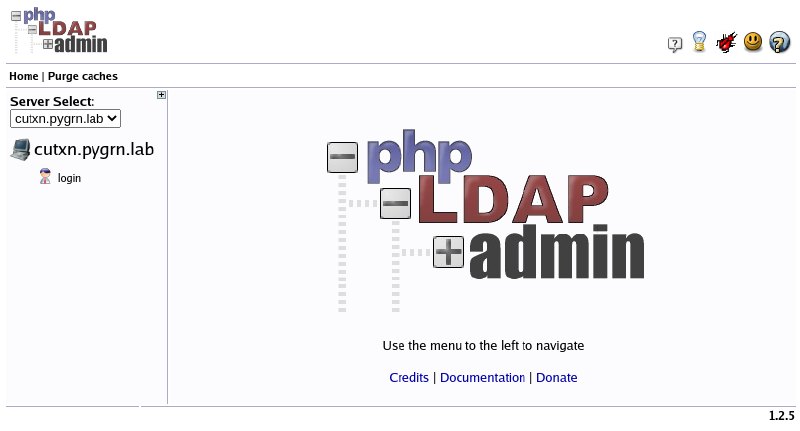
Looking good so far. Right now we won’t be able to log into the LDAP server because we haven’t configured it yet. In the next post we will setup the master/master replication pair we spoke of before.